Reading
Meshy Rig Bent Your Arms? The Mesh Is the Problem, Not the Rig
Limbs twisting after Meshy auto-rigging? Hitting Re-rig again won't fix it. Fix the pose, face count and markers first, and know Smart Rig's limits.
Prices last read 2026-11-03
Short answer
Your limbs deform because the model going into the rigger isn't ready for it, not because the rig button had a bad day.Meshy's rigging guide lists three causes. Limbs that touch the body or sit outside a T-pose or A-pose put bones in the wrong place. A messy or overly dense mesh clips when it moves. Odd proportions make limbs deform badly. Meshy's own fixes are to regenerate the character in an A-pose or T-pose, Remesh it, and use proportions close to a standard human body. Models over 300,000 faces have to be reduced with Remesh before they can be rigged at all.Source: Meshy Docs: Rigging · 2026-11-03
I'll say it plainly: the Re-rig button is the most overused button in Meshy. Clicking it again on the same lumpy, arms-glued-to-the-hips model is like re-running a failed build without changing the code. Auto-riggers aren't magic. They guess where joints go from the shape they're given. Give them a blob and they'll guess like it's a blob.
Why the rig goes wrong: three causes in Meshy's own guide
Pose comes first. For best results, Meshy says the character should stand in a T-pose or A-pose with a clear gap between the limbs and the body. If arms merge into the torso, the rigger can't tell where one ends and the other starts. Meshy's fix for bones in the wrong place is to regenerate in A-pose or T-pose and rig again. Topology comes second. The guide's fix for a mesh that clips during movement is to Remesh to a lower face count and re-rig. It also recommends remeshing before rigging for more accurate bone binding and weights. Proportions come third. For limbs that deform badly, Meshy recommends a character with proportions close to a standard human body.
Source: Meshy Docs: Rigging · 2026-11-03
The fix, in order
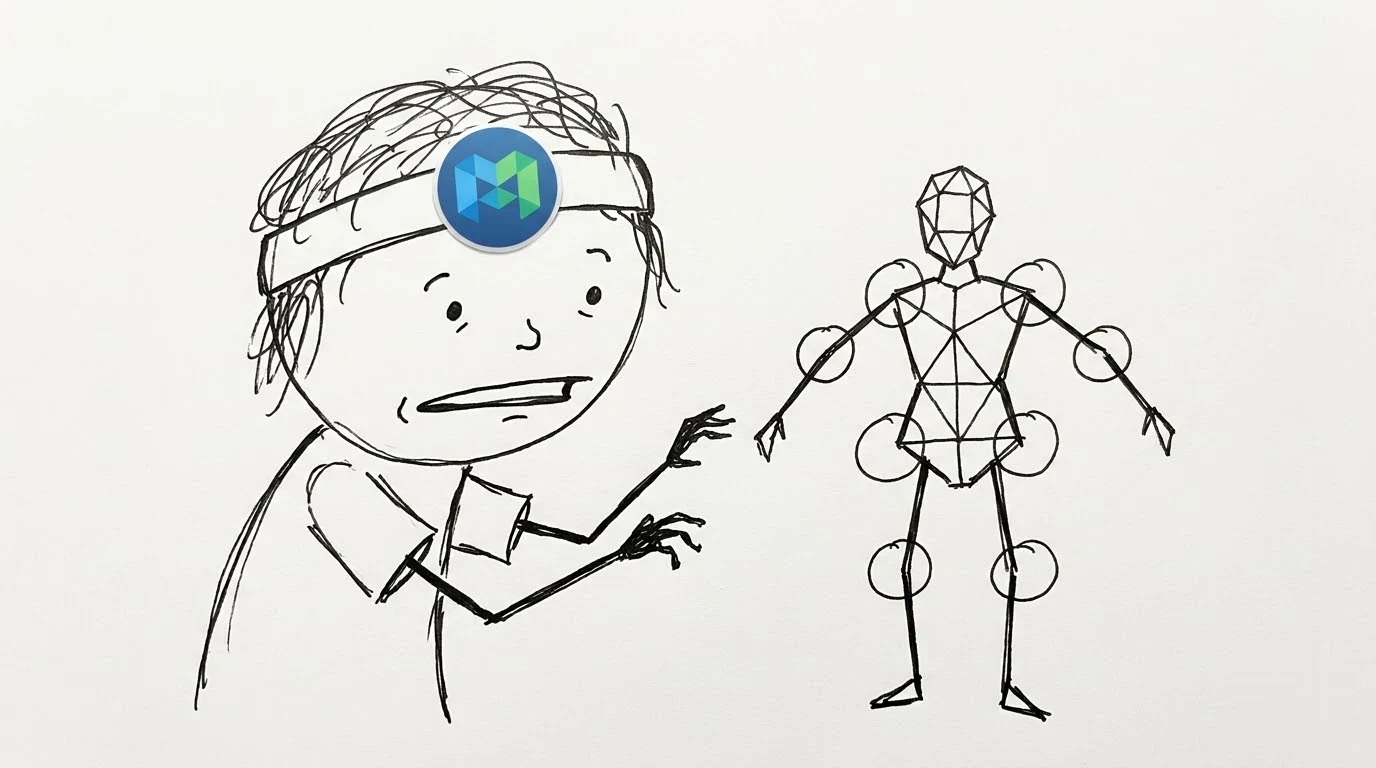
- 1. Regenerate in a clean A-pose or T-poseIf arms or legs touch the body, don't rig that version. Regenerate the character in an A-pose or T-pose with clear gaps between the limbs and the torso.
- 2. Remesh before you rigIn the generations panel, click the model, then click Remesh in the viewer toolbar. Choose Fixed or Adaptive under Target Polycount, pick a target, choose Quad or Triangle topology, and click Confirm. Remesh saves the result as a separate model and keeps your original. Rig the new version.
- 3. Get under 300,000 facesThis is a hard requirement. Meshy says models over 300,000 faces must be reduced with Remesh before rigging. Fixed targets go from 3K to 100K, or a custom value from 100 to 300,000.
- 4. Set up the character, then place markers carefullyGo to Animate, select the character, click Rig, and choose Humanoid. Use Rotate, Offset and Height so the character is centered, faces forward, and has its height set in meters. Meshy places markers automatically, but drag each one onto the chin, shoulders, elbows, wrists, groin, knees and ankles. Symmetry is on by default for humanoids, so check both sides.
- 5. Confirm, then check the motionClick Confirm (on Free and Starter plans the button reads Generate). If the markers turn out to be wrong, click Re-rig and put every marker on the body.
Source: Meshy Docs: Rigging · 2026-11-03; Meshy Docs: Remesh · 2026-11-03
Remesh catches for free users
Meshy says Remesh costs no credits and takes about a minute. On a free plan, though, only the 10K target is available, and the other targets need a paid plan. The Remesh button also doesn't appear for Meshy T2 models or split parts.
Source: Meshy Docs: Remesh · 2026-11-03
Smart Rig: works on anything, does less with it
If your character isn't a biped, Meshy has three character types: Humanoid (two arms, two legs, with walking and running animations added), Quadruped Dog (four legs, with a walking animation added), and Smart Rig (Beta). Smart Rig is for everything else, such as creatures, robots or props, and needs no markers. The trade-off is that Smart Rig models can't use the animation library and download only as GLB. Humanoid and quadruped rigs download as FBX or GLB for Unity and Unreal, and humanoids get a skeleton template choice in Download Settings (Mixamo is the default). Meshy doesn't support facial expression bones or tail physics. For a custom skeleton, it says to download the model and rig it in Blender or Maya.
Source: Meshy Docs: Rigging · 2026-11-03
My take: Smart Rig is both overrated and underrated. It's overrated as a way to rescue a broken humanoid. If your knight has two arms and two legs, forcing Smart Rig just to skip marker placement costs you the animation library and FBX export. It's underrated for the stuff Humanoid and Dog were never built for: a six-legged beetle, a mech, a swinging lamp. And if your design needs a talking face or a swishing tail, don't fight Meshy over it. Take the remeshed GLB or FBX into Blender and do that part yourself.
Pre-rig checklist
- Character stands in an A-pose or T-pose
- Clear gap between arms and torso, and between the legs
- Model remeshed, with clean topology and under 300,000 faces
- Character type matches the body: Humanoid, Quadruped Dog or Smart Rig
- Character centered, facing forward (quadrupeds face left), height set in meters
- Markers on chin, shoulders, elbows, wrists, groin, knees and ankles
- Facial bones or tail physics needed? Plan to rig in Blender or Maya
Source: Meshy Docs: Rigging · 2026-11-03
You are solely responsible for reviewing and evaluating all Customer Output for accuracy, completeness
Meshy Terms of Service, Section 2.4 (Last Updated: September 19, 2026)Source: Meshy Terms of Service · 2026-11-03
Why this matters here: under Meshy's terms, checking AI-generated output, including a rigged model, is your job. The same terms say output is provided "as-is" and may be inaccurate. Preview your rig's motion before you build a scene on top of it.
Source: Meshy Terms of Service · 2026-11-03
Optional: compare Meshy subscription listings from a seller (a reseller listing, not official access or an endorsement). That link carries our partner code Sk52g, which is how a purchase is attributed to this site. Promotion code UPD3S.
Sources (read 2026-11-03)