Reading
Your PDFelement Black Box Is Hiding Nothing. Here's the Fix
Drew a black box over a name in PDFelement? The text is probably still there. Here are the two clicks that actually delete it, on every page at once.
Prices last read 2026-11-12
Short answer
Probably not. A black shape on top of text only covers it. The text itself usually stays in the file.Wondershare's own guides say the text under a drawn shape usually stays in the PDF, and someone can copy it or remove the shape. In PDFelement for Windows, real removal takes two steps: Protect > Mark for Redaction, then apply the redaction and confirm with Continue. If the same name shows up on many pages, use Protect > Search & Redact, then Apply All Marks.Source: How to Black Out Text in PDF Without Redact (Windows, Mac & Adobe Guide) · 2026-11-12; PDFelement User Guide (Windows): Redact PDF · 2026-11-12
Why your black box fails
Wondershare's article on blacking out text without redaction says covering text with a shape leaves the original content in the file. It also warns that someone can copy and paste the hidden text or remove the shape. Its masking guide is blunter: anyone who opens the PDF can click the black box and delete it. The black box changes what the page looks like, not what the file contains.
Source: How to Black Out Text in PDF Without Redact (Windows, Mac & Adobe Guide) · 2026-11-12; How to Mask a PDF: The Ultimate Guide to Hiding Sensitive Data · 2026-11-12
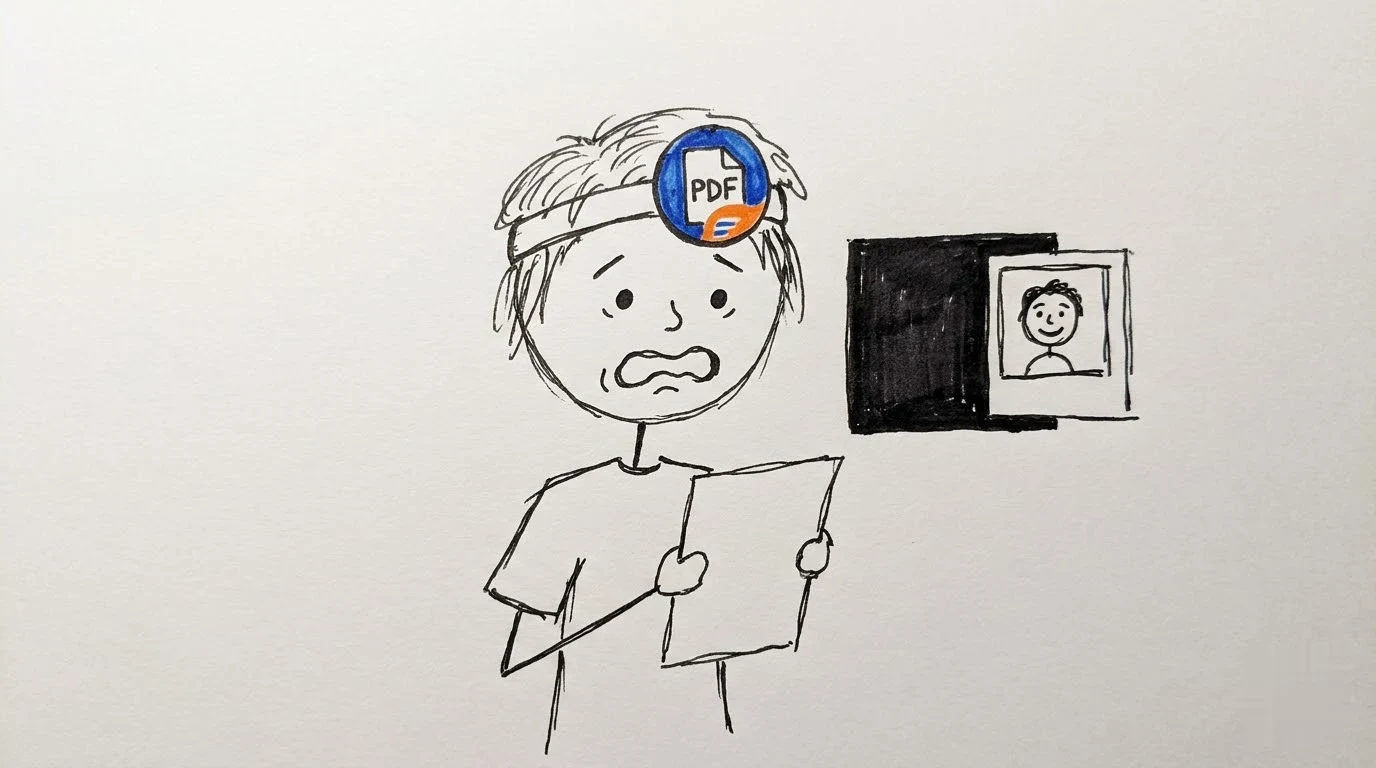
Here is the confusing part. Even the real redaction tool shows black boxes before anything is deleted. The Windows guide says a marked area turns black when you hover over it and goes back to a red rectangle when you move away, and it stays that way until you apply the redaction. So a black box can mean three things: a shape, a mark you haven't applied yet, or a finished redaction. Only the last one removes the text.
Source: PDFelement User Guide (Windows): Redact PDF · 2026-11-12
My take: the black preview is a trap
Showing marked text in black before anything is removed is asking for trouble. People stop at whatever looks finished, and a black preview looks finished. I'd rather the tool kept marks loudly red until the moment you apply them. Until then, treat any red outline as unfinished work.
Fix it on Windows: mark, then apply
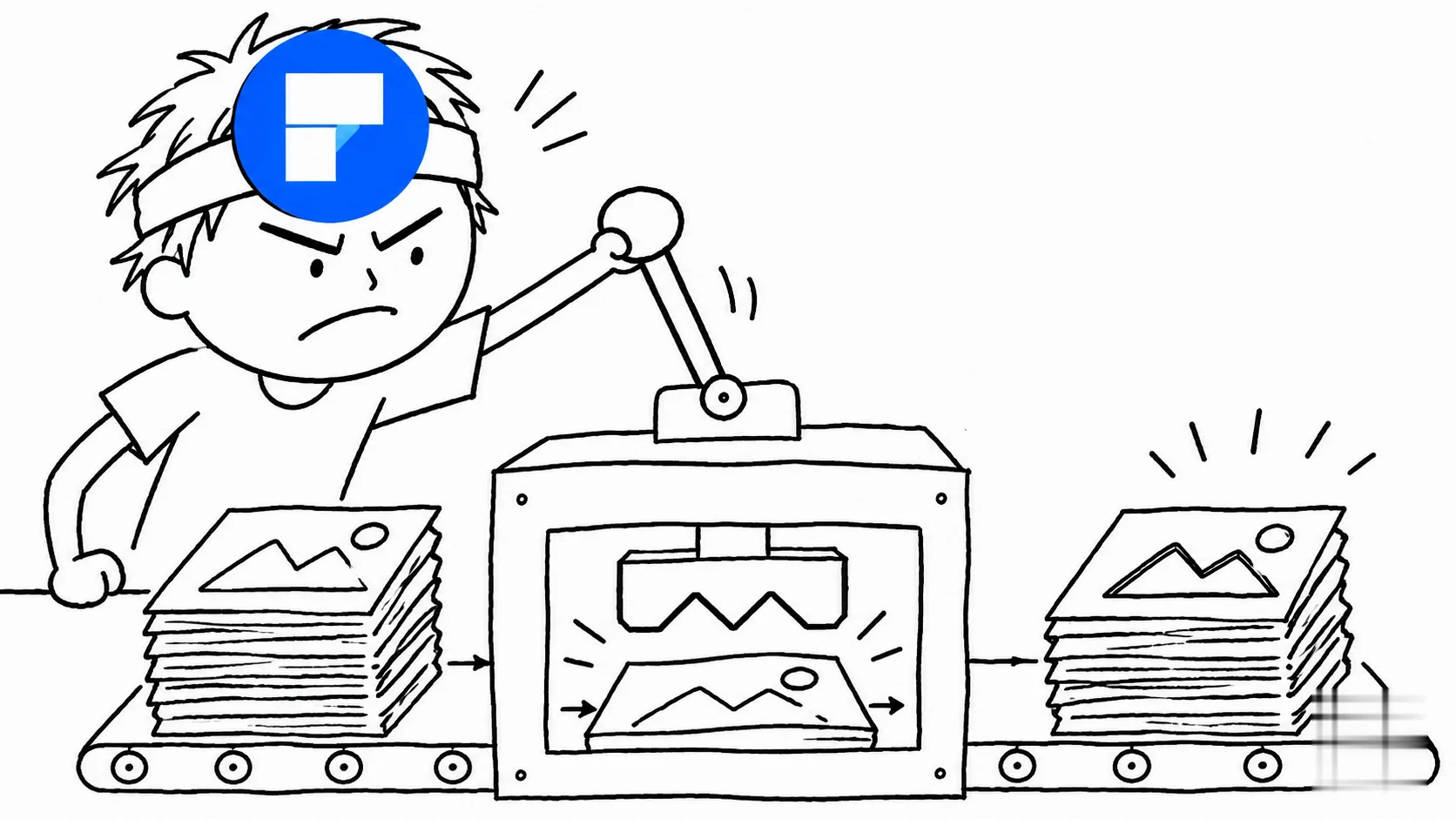
- Delete the shape you drewIt doesn't remove anything, so it only gets in the way. Wondershare's masking guide notes that a black shape can simply be clicked and deleted.
- Go to Protect > Mark for RedactionDrag a rectangle around the text. To mark a whole image, double-click it. Marked areas show a red outline.
- Set the look now if you care about itRight-click a mark and choose Properties to change its appearance. The guide says you can only change these settings before you apply the redaction.
- Apply the redactions and click ContinueA warning asks you to confirm. Until you click Continue, the content is only marked, not removed.
- Save the fileWondershare's masking guide ends its steps with File > Save As. Share the saved copy.
Source: PDFelement User Guide (Windows): Redact PDF · 2026-11-12; How to Mask a PDF: The Ultimate Guide to Hiding Sensitive Data · 2026-11-12
Same name on 40 pages? Don't do it by hand
Go to Protect > Search & Redact, type the name or phrase in the search box on the left, and tick the results you want removed. Then click Apply All Marks. The guide says a warning will ask whether you are sure you want to remove them permanently. Click OK. If the item is in the same spot on every page, like a letterhead or footer, the multi-page guide offers another route. Mark it once, right-click, choose Apply to Multiple Pages, tick All Pages, click OK, then apply the redaction and click Continue.
Source: PDFelement User Guide (Windows): Redact PDF · 2026-11-12; PDFelement User Guide (Windows): Apply Redaction to Multiple Pages · 2026-11-12
Underrated: Search & Redact beats your eyes
Search & Redact is the most underrated button in this menu. Covering text by hand works when there are three instances. It fails on page 37, where the client's name shows up in a footnote you never scrolled to. Let the search find every match, then read through the results list. Keep in mind it can only find text it can search, so for scans, do one more check by eye.
On a Mac, the buttons have different names
Wondershare's Mac article describes Protect > Redact, then Text & Image to drag over content, or Pages to pick a page range. You finish with Apply at the bottom of the right panel. The article says the selected area is removed permanently and can't be uncovered once you save. It also mentions a Smart Redact option that detects selected types of information for you to review.
Source: How to Quickly Redact PDF on Mac in 4 Ways · 2026-11-12
Before you hit send
- Reopen the saved PDF and try to select or copy the covered text. If you still can, it wasn't removed.
- Check that no red redaction outlines are left. Red means the area is marked, not removed.
- Make sure the copy you share is the saved, redacted file, not the original.
Source: How to Black Out Text in PDF Without Redact (Windows, Mac & Adobe Guide) · 2026-11-12; PDFelement User Guide (Windows): Redact PDF · 2026-11-12
Licensee is solely responsible for Licensee's use, storage and disclosure of the End-User Generated Content.
Wondershare End User License Agreement, Section 17Source: Wondershare End User License Agreement · 2026-11-12
Why this matters here: under Wondershare's license, what you share made with the software is your responsibility. Section 14 also says the software is provided "as is." If a document goes out with a covered but not removed name, the license puts that on you, not on Wondershare. That's one more reason to do the copy test before sending.
Source: Wondershare End User License Agreement · 2026-11-12
The verdict
PDFelement's redaction tool does the job. The real failure is the habit of using a drawing tool for it. If something has to disappear for legal or privacy reasons, never reach for the shape tool. Mark the text, apply the redaction, save, then try to copy it.
Optional: compare PDFelement subscription listings (seller offers, not official Wondershare access or an endorsement). That link carries our partner code Sk52g, which is how a purchase is attributed to this site. Promotion code UPD3S.
Sources (all read 2026-11-12)
- PDFelement User Guide (Windows): Redact PDF
- PDFelement User Guide (Windows): Apply Redaction to Multiple Pages
- How to Black Out Text in PDF Without Redact (Windows, Mac & Adobe Guide)
- How to Mask a PDF: The Ultimate Guide to Hiding Sensitive Data
- How to Quickly Redact PDF on Mac in 4 Ways
- Wondershare End User License Agreement