Reading
Copying Your Filmora .wfp File Moves None of Your Footage
Copy just the .wfp file and Filmora opens with no footage. One menu item, Archive Project, fixes that, and there's a check to do before you delete anything.
Prices last read 2026-11-06
Short answer
Don't copy the .wfp project file by itself. Open the project, choose File > Archive Project, save the archive, move it to the new computer and open it there.A Filmora project file stores references to your media, not the media itself. Archive Project saves the project file together with the videos, images and audio it uses. The shortcut is Ctrl + Shift + A on Windows and Shift + Command + A on Mac. Before you delete or reorganize the originals, open the archive on the destination computer and play the timeline through.Source: Move Projects (Windows) – Filmora User Guide · 2026-11-06; Move Projects (Mac) – Filmora User Guide · 2026-11-06; Create a Project – Filmora User Guide · 2026-11-06
Why the .wfp file arrives empty
Wondershare's own guide says a .wfp project holds the settings for each sequence in your timeline. It doesn't hold the source files: the project keeps only a reference to each video, audio clip or image, based on its file name and location. Copy the .wfp to a laptop that doesn't have those files at those paths and Filmora has nothing to point to. The same thing happens on your own machine if you move, rename or delete a source file.
Source: Create a Project – Filmora User Guide · 2026-11-06
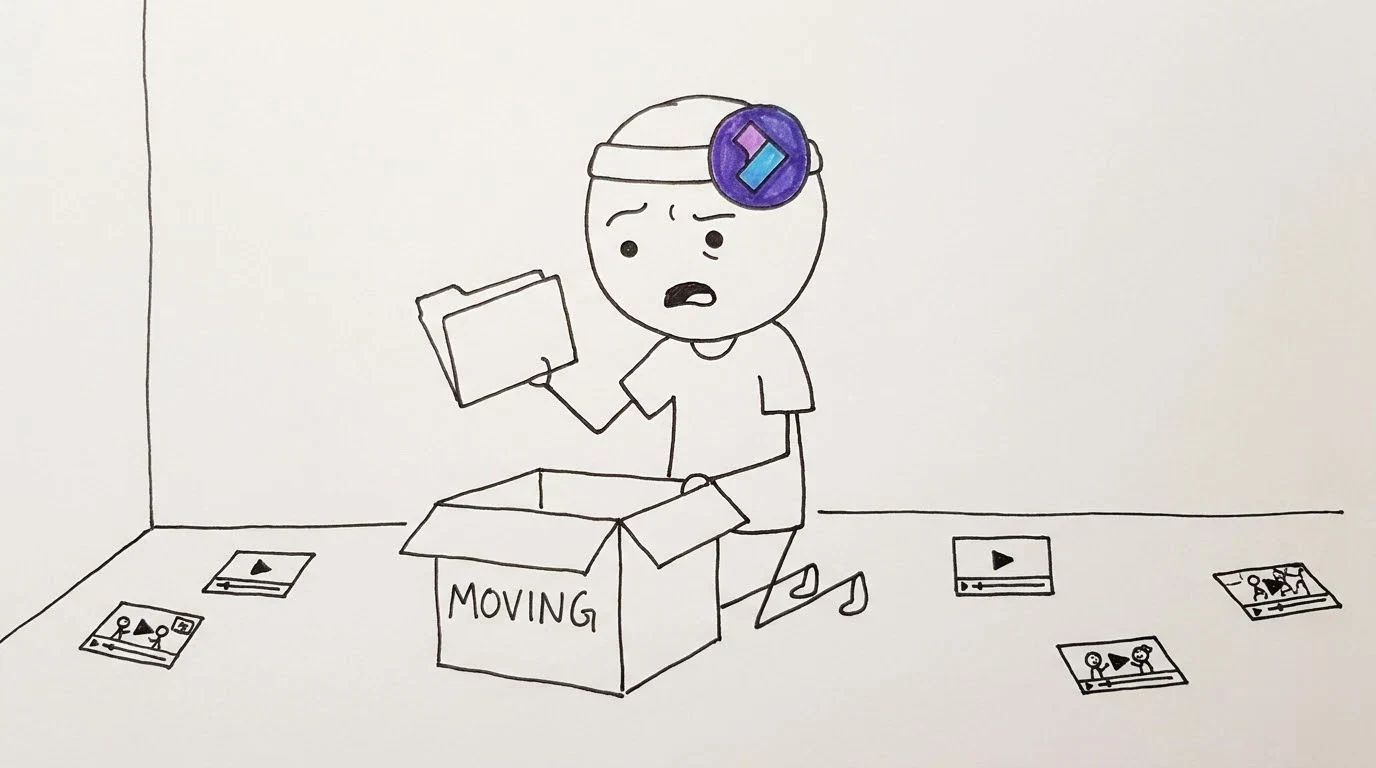
Filmora project files don't store the source videos, audio, or images.
Wondershare Filmora User Guide, "Create a Project" (read 2026-11-06)Source: Create a Project – Filmora User Guide · 2026-11-06
That sentence is the whole problem. Wondershare's Mac guide is just as direct about the fix. It tells you not to move the saved project to another computer on its own, and to run File > Archive Project first.
Source: Move Projects (Mac) – Filmora User Guide · 2026-11-06
How to move a project with Archive Project
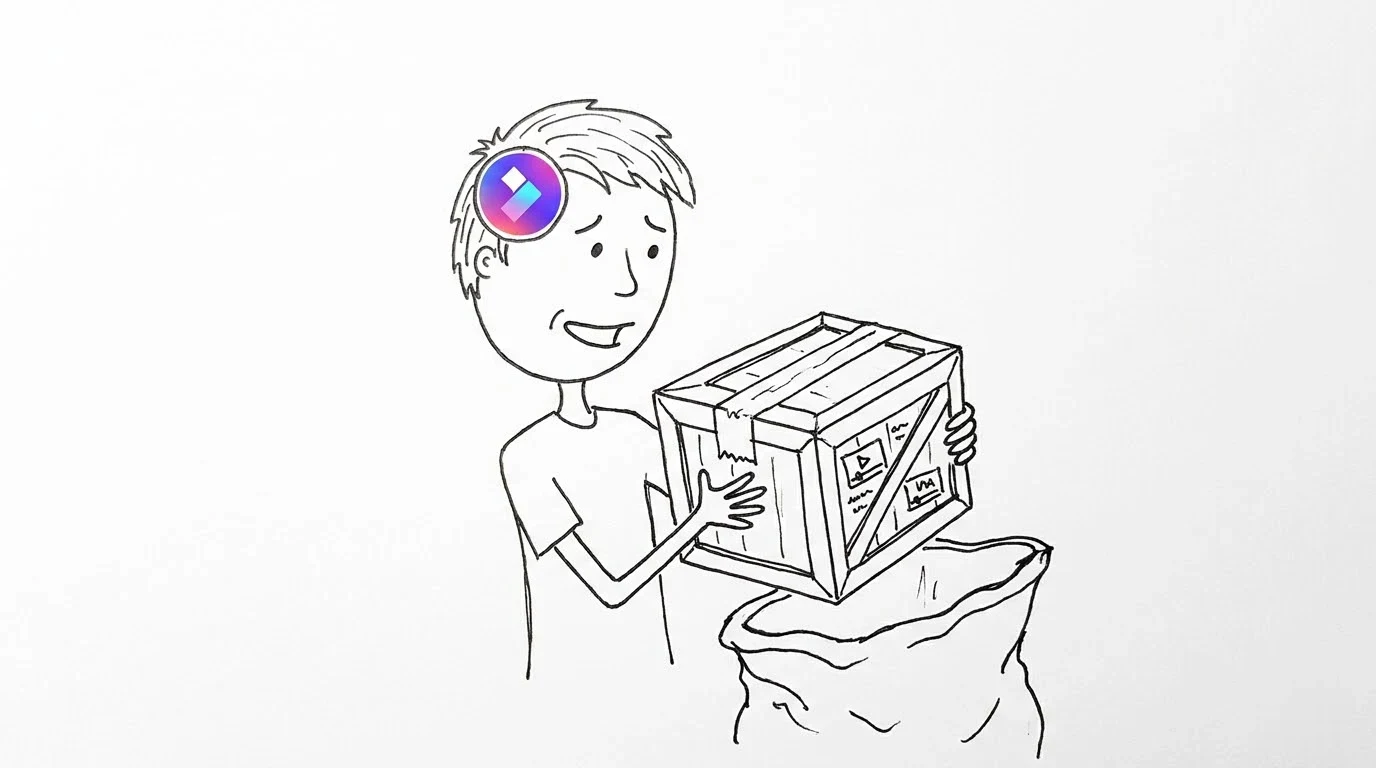
- Open the project on the source computerOpen the project you want to move in Filmora on the computer that has all the original media.
- Choose File > Archive ProjectOn Windows, use Ctrl + Shift + A. On Mac, use Shift + Command + A. Wondershare says this saves the project file together with the media used in it.
- Pick a location and saveChoose a folder or an external drive, enter a file name and click Save. Wondershare's Mac guide says the result is a single .wfp file that contains both the project and its source files.
- Transfer the archiveCopy the archive to the other computer with a USB drive or another transfer method. On Mac, Wondershare also mentions uploading it to its cloud storage and downloading it on the other machine.
- Open it on the destination computerOn Mac, use Open Project in the startup window or File > Open Project. Wondershare's cross-platform support article says you can double-click the .wfp file.
Source: Move Projects (Windows) – Filmora User Guide · 2026-11-06; Move Projects (Mac) – Filmora User Guide · 2026-11-06; How to Archive Project in Filmora – Wondershare Support · 2026-11-06; Open Projects on Mac – Filmora User Guide · 2026-11-06; Are project files compatible between Windows and Mac? – Wondershare Support · 2026-11-06
Moving between Windows and Mac? Match the versions
Wondershare's support article says .wfp projects from Filmora9, FilmoraX and Filmora11 open on both Windows and Mac if you archive them first. It also says the Windows and Mac versions of Filmora must match. Older Filmora 7 and 8 projects used different, incompatible formats on each platform. The article only names versions up to Filmora11, so for anything newer, install the same version on both machines.
Source: Are project files compatible between Windows and Mac? – Wondershare Support · 2026-11-06
Check these on the new computer before you clean up the old one
- The archive opens in the same version of Filmora.
- Every clip in Project Media shows real footage, not a missing-file placeholder.
- You played the timeline from start to finish, including music, voiceover and still images.
- If Filmora asks you to relocate files, sort that out now while the originals still exist.
- Only after all of that, delete, rename or reorganize the original media folders.
If something does go missing, Filmora shows you where it expected the files. On Mac, click Relocate to find them, then OK to reopen the project. On Windows, right-click the missing clip in Project Media, choose Relink Media, select the folder where the file is now and click Open. If a file was permanently deleted, you can choose a replacement. That only works while you still have the originals somewhere, which is why the order of the checklist above matters.
Source: Relocate Projects (Mac) – Filmora User Guide · 2026-11-06; How to Relink Missing Media in Filmora (Windows) – Filmora User Guide · 2026-11-06
My take: Archive Project should be front and center, not buried in the File menu
Filmora sells itself as the editor you don't need training for. Then it uses the oldest trick in desktop video: a project file that's really just a list of file paths. Nothing about a .wfp file tells you it's a list of addresses rather than your video, so people copy it, open it on the new machine and assume the project is broken. Wondershare explains this clearly, but in a help page and a Mac warning that most people only find after something has gone wrong. Archive Project is one of Filmora's most underrated features, and it deserves better placement. A prompt on Save As, or a warning when you open a project whose media isn't there, would prevent far more frustration than another AI effect. Until that happens, treat Archive Project as the real save button for any project that will leave your desk.
Make it a habit
Archive whenever a project is finished or about to be handed off, not only when you change computers. Wondershare also recommends archiving for complete backups and to avoid missing-file problems later. Archives include the media, so they take up a lot of space: keep them on an external drive with room to spare.
Optional: compare Filmora subscription listings from a third-party seller (a seller listing, not official access or an endorsement). That link carries our partner code Sk52g, which is how a purchase is attributed to this site. Promotion code UPD3S.
Sources (all read 2026-11-06)
- Move Projects (Windows) – Filmora User Guide
- Move Projects (Mac) – Filmora User Guide
- Create a Project – Filmora User Guide
- How to Archive Project in Filmora – Wondershare Support
- Are project files compatible between Windows and Mac? – Wondershare Support
- Open Projects on Mac – Filmora User Guide
- Relocate Projects (Mac) – Filmora User Guide
- How to Relink Missing Media in Filmora (Windows) – Filmora User Guide